Tasks handed out in group chats slip away. Today someone is asked to call a customer back about a quote; tomorrow nobody remembers who took it or whether the call happened. Kanban task management puts every task on one shared board: a single glance shows what is waiting, in progress, awaiting review or done.
What sets this solution apart is that the task board lives in the same system as the CRM and the AI assistant. The screenshots come from a live console running sample data.
What the Kanban task management board looks like
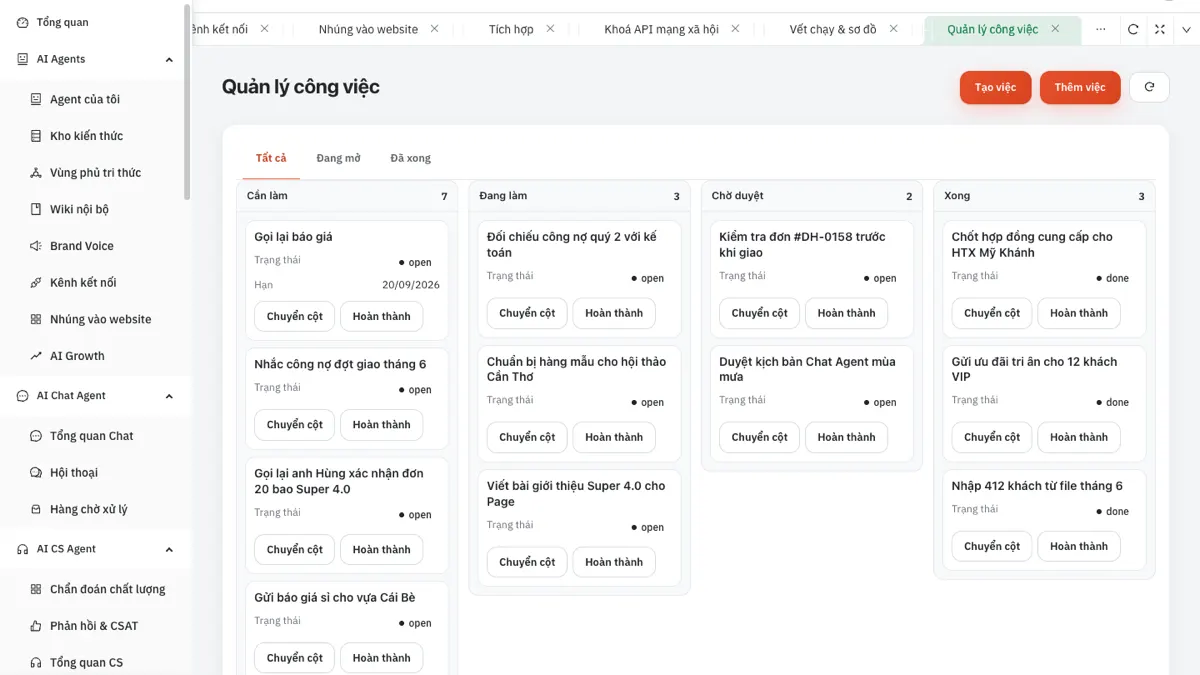
The board has four columns: To do, In progress, Awaiting review and Done, each headed by its task count. Three filter tabs show all tasks, open tasks only, or completed tasks only.
Each card shows the task name, status and deadline if set. Two buttons sit on the card: "Move column" to push the task to its next step and "Complete" to close it.
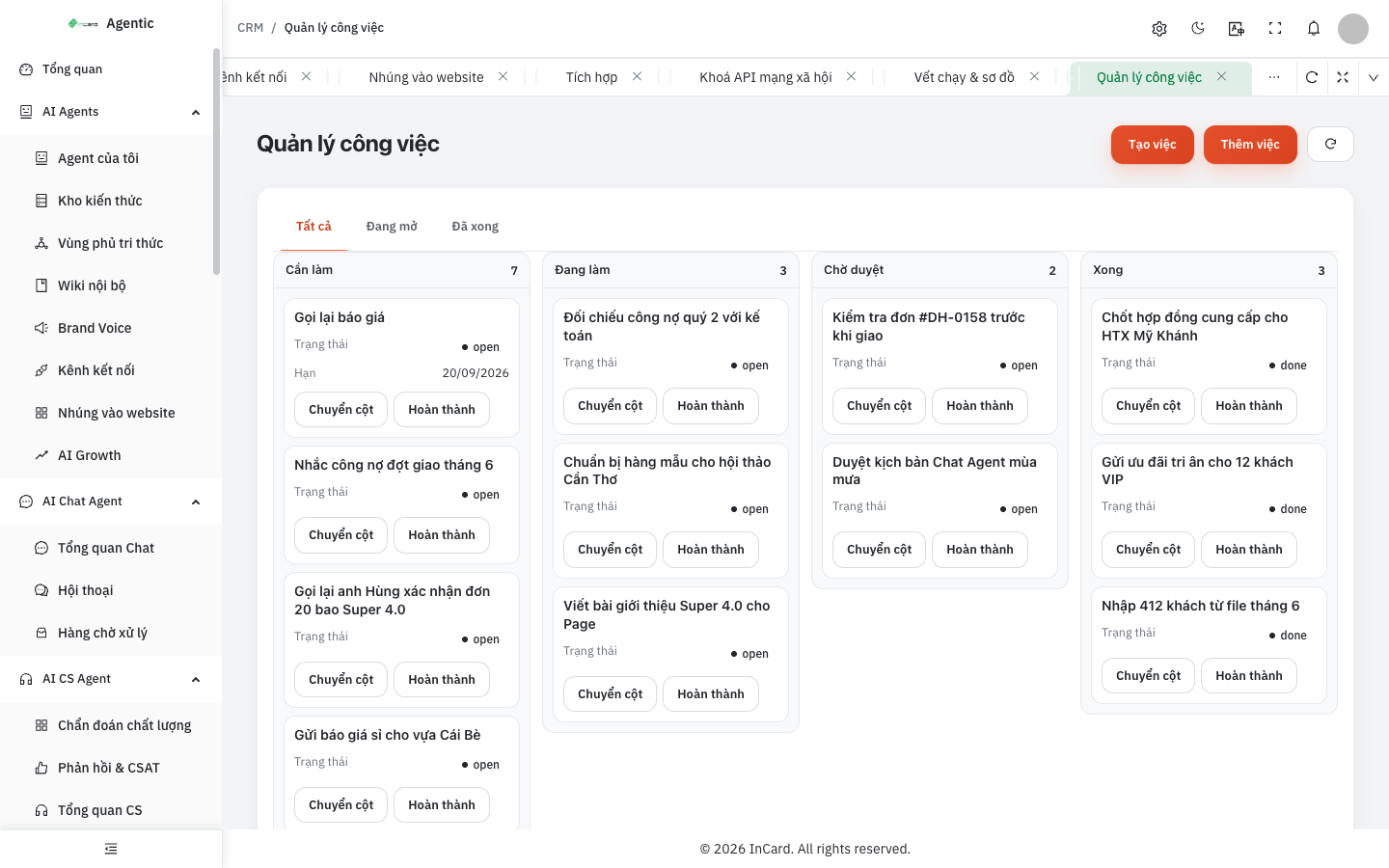
An Awaiting review column for work that needs a check
Finished is not always done. Checking an order before delivery, approving a chat script for the AI assistant — such tasks stay in Awaiting review until the responsible person signs off. The column clearly separates "done" from "approved".
Separate columns also make the weekly report simpler: the number of cards in Done shows the work completed, and cards lingering in Awaiting review show where work is stuck at the checking stage. Managers can unblock exactly that spot.
Tasks linked to customers
The "Create task" button opens a short form: task name, which customer, assigned to whom, deadline (date and time) and priority. The customer field links the task to the CRM record, and the customer list has a "Next task" column so agents see pending work at once.
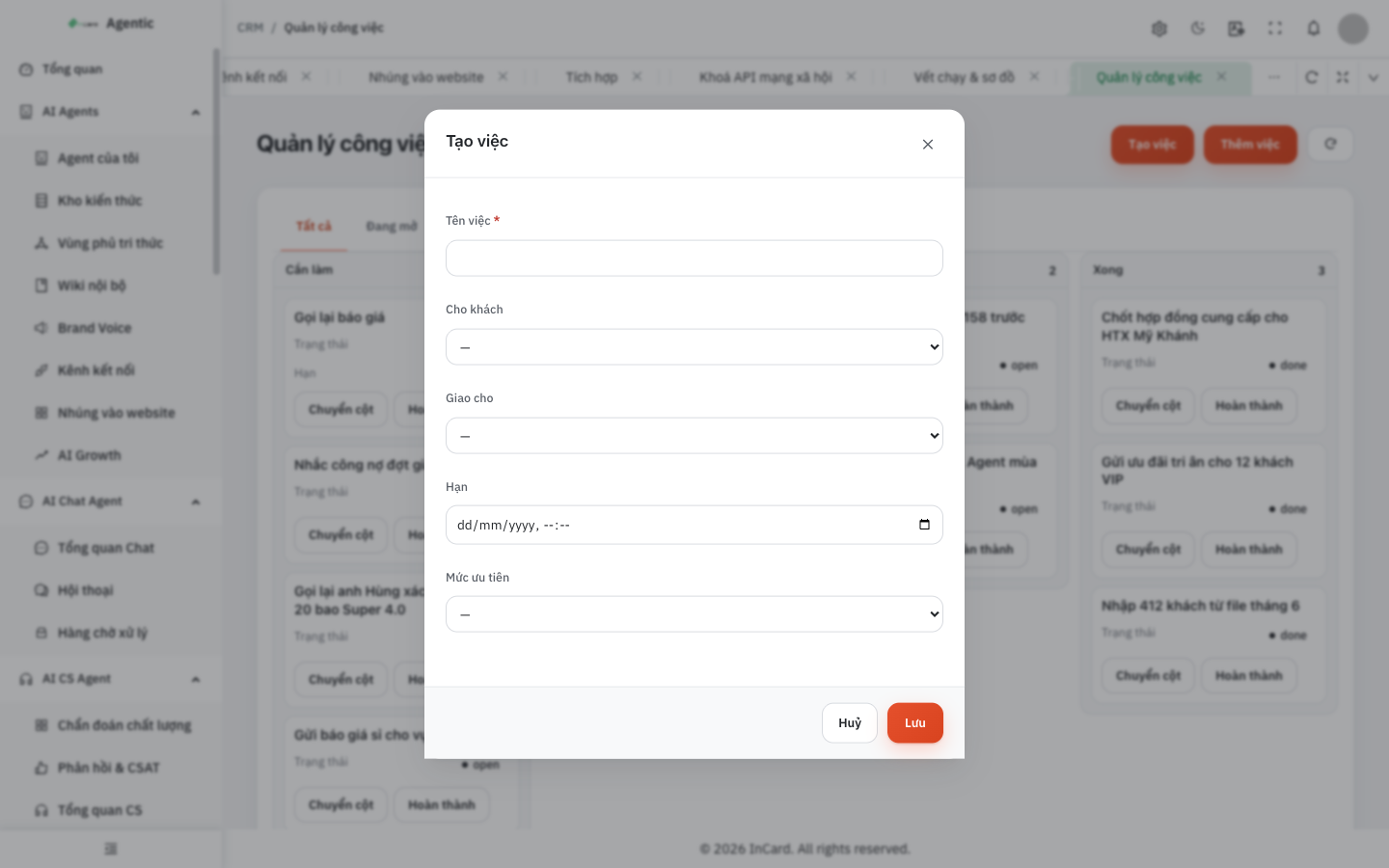
Due tasks surface on the overview page
The console overview has a "Tasks due" tile counting tasks that are overdue or due today. Managers do not have to open each column to find what is late.
Progress updates by percentage
For tasks spanning several days, the "Progress updates" screen lets the assignee log the percentage completed and what was done at each update. The "Task list" screen lists title, description, assignee, assigner, priority, deadline, completion time and related customer.
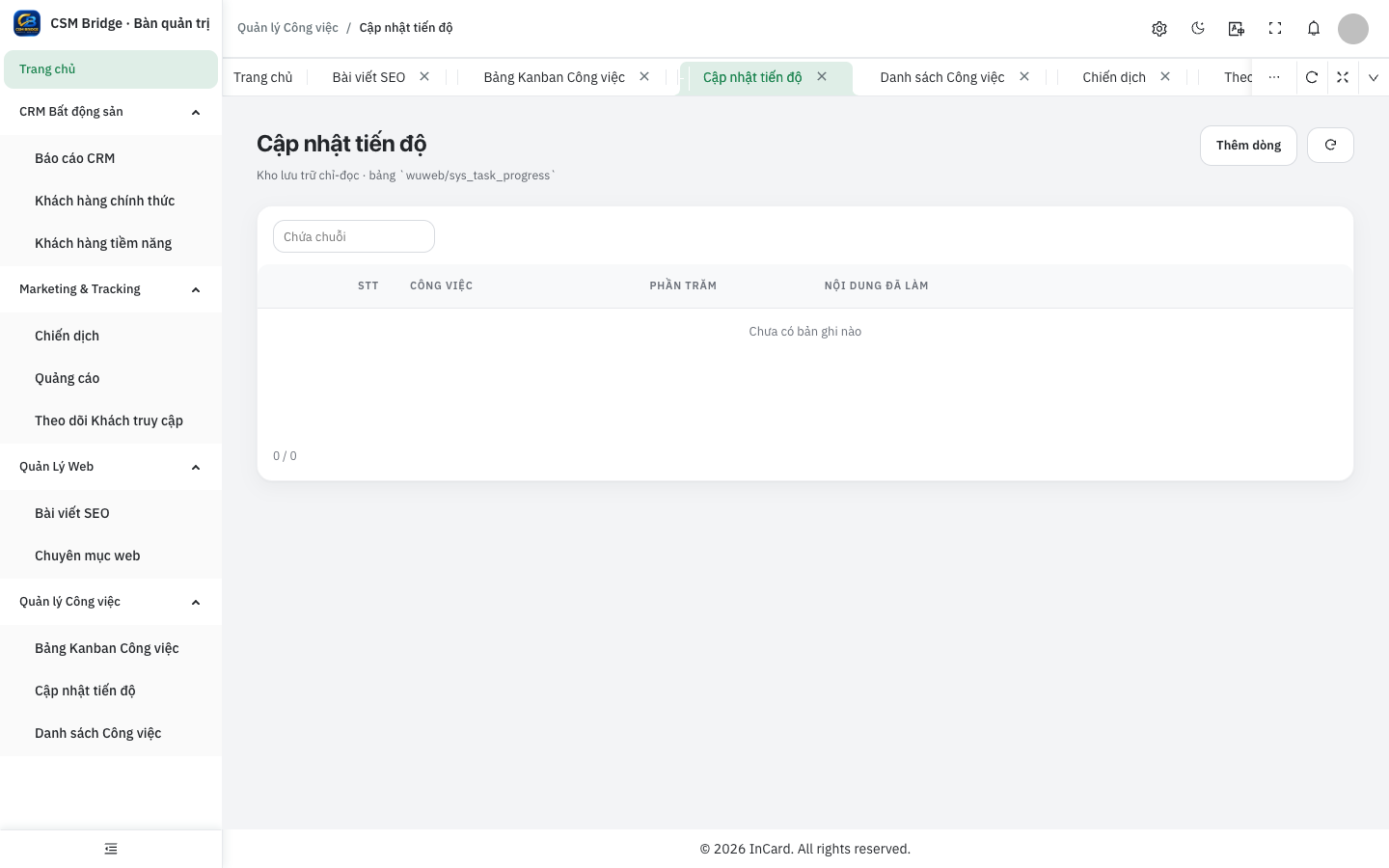
A working day on the Kanban task management board
- First thing, the manager checks the "Tasks due" tile and opens the board on the "Open" tab.
- An agent takes a task from To do and clicks "Move column" to In progress when starting the call.
- Work that needs checking moves to Awaiting review; the reviewer confirms and clicks "Complete".
- For multi-day tasks, the assignee logs the progress percentage and what was done.
- At the end of the day, the "Done" tab shows everything closed that day.
No meeting needed to ask "where is that task?" — the answer is already on the board.
Why keep the Kanban board next to your CRM and AI assistant
- A visitor leaves a number via the AI website chat assistant → create a call-back task linked to that customer.
- Customers in the real estate CRM always have a clear next step, so nobody is forgotten.
- Sensitive work passes through Awaiting review before it counts as done.
Best suited to
- Sales and customer-care teams that coordinate every day.
- Businesses ready to stop assigning work through group chats.
- Managers who want a quick look at overdue work every morning.
Talk to us
Want to see it running on your own business data? Get in touch via the Contact page or ask the chat assistant in the corner of the screen. Explore more in the AI Agent Solutions section.