In property brokerage and distribution, customers arrive from everywhere: project websites, Messenger, phone calls, ads. When each source lives in its own spreadsheet, agents call the same person twice, miss hot leads, and nobody knows which campaign works. CSM Bridge's real estate CRM brings everything into one console.
The screenshots below come from two consoles in daily use. Customers' personal data has been blurred.
What the real estate CRM includes
The "Real Estate CRM" menu has the main screens: CRM Report, Customers and Leads. Next to it, "Marketing & Tracking" holds Campaigns, Ads and Visitor Tracking.
Leads by project
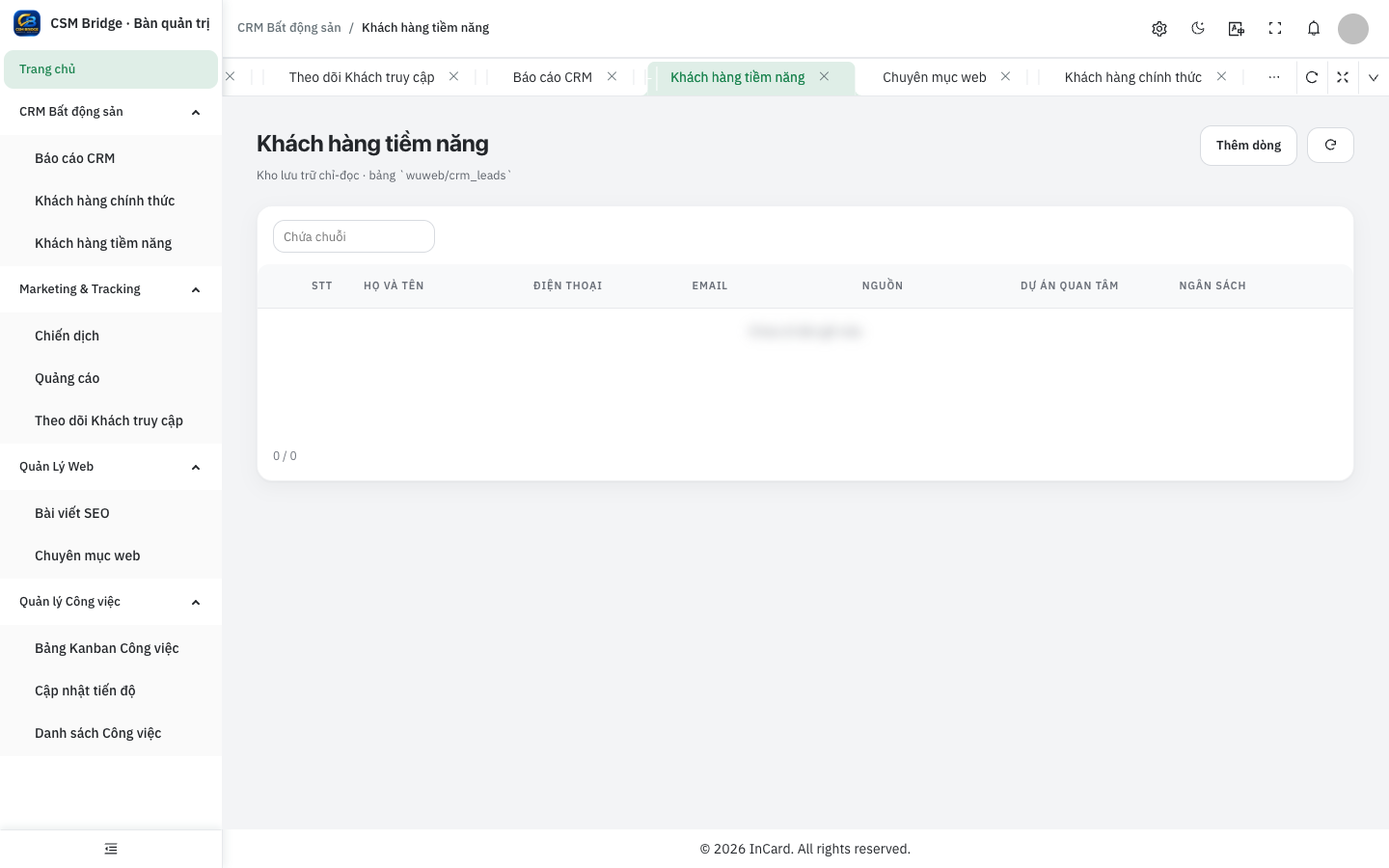
Each lead stores name, phone, email, source, project of interest and budget. These two fields are specific to the industry: knowing which project a buyer asked about and how much they can spend is what lets an agent recommend the right unit.
Customers and interaction history
Once a deal closes, the record moves to "Customers" with fuller details: ID number, address and tax code. Every interaction is logged with the action, interaction type, content and next step.
Sales funnel and multichannel leads
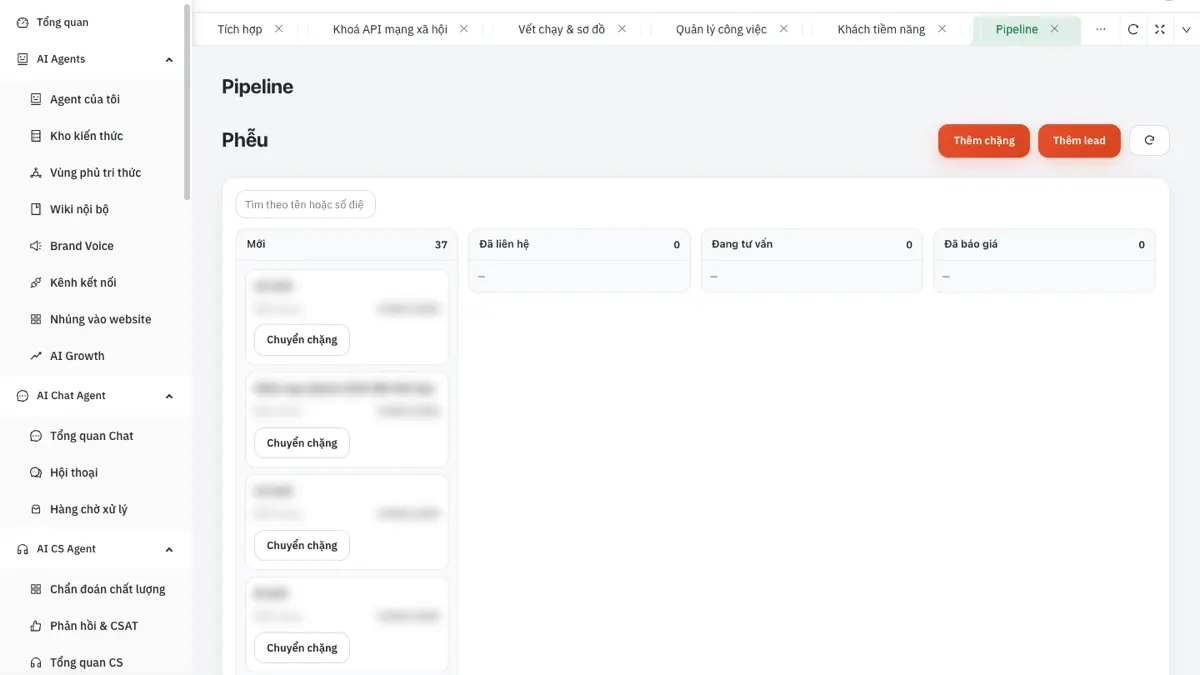
The Pipeline screen shows leads by stage: New, Contacted, Consulting, Quoted. You can add stages to match your own process and click "Move stage" as a buyer progresses.
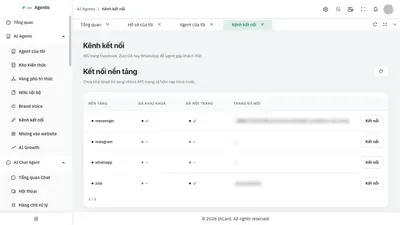
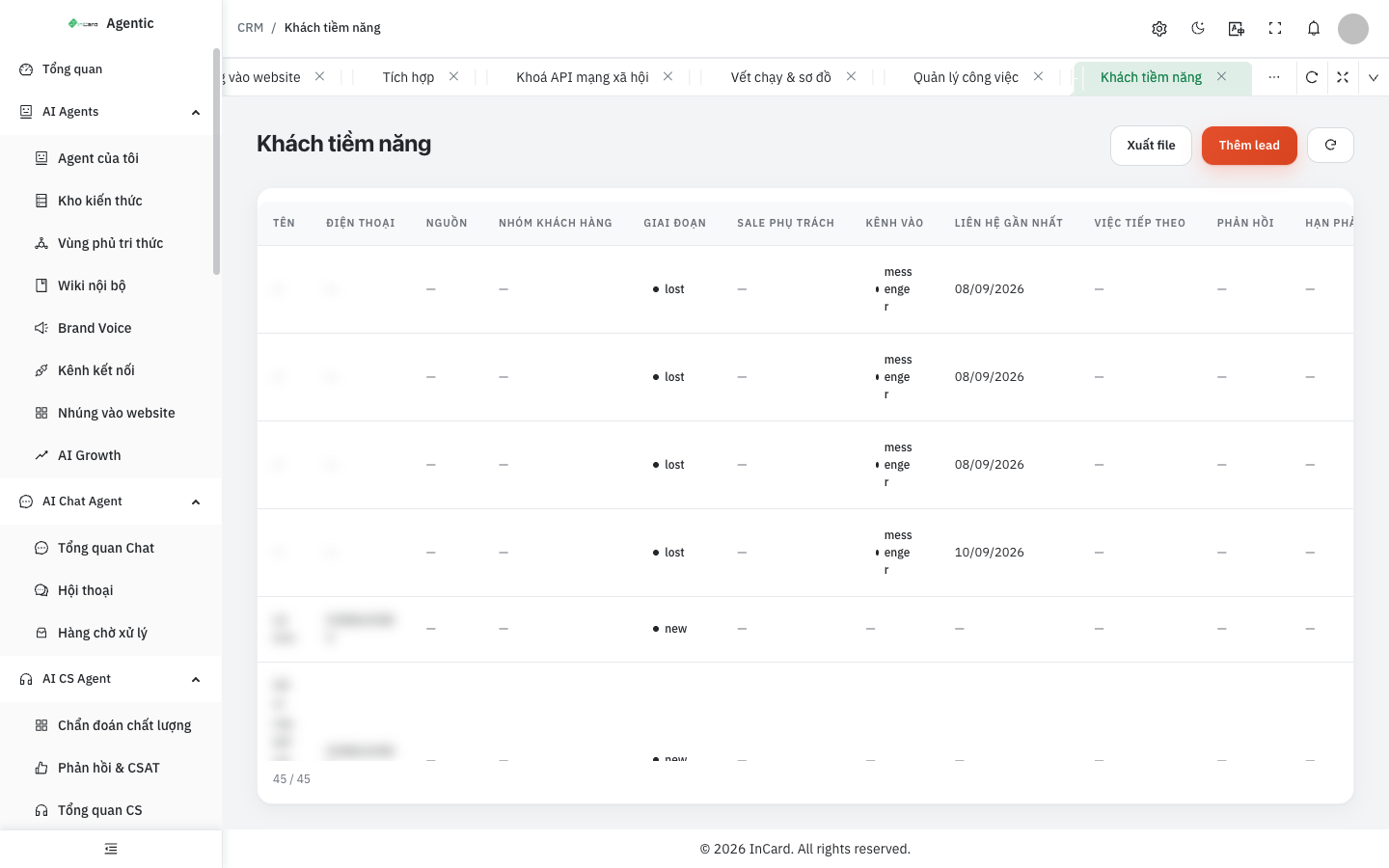
The lead list shows the entry channel (for example Messenger), the assigned agent, last contact, next task and response deadline. Each row has ready actions: mark as replied, change priority, rate how hot the lead is, convert to customer, look up the company from an email address, or mark as lost.
Import, export and win back past customers
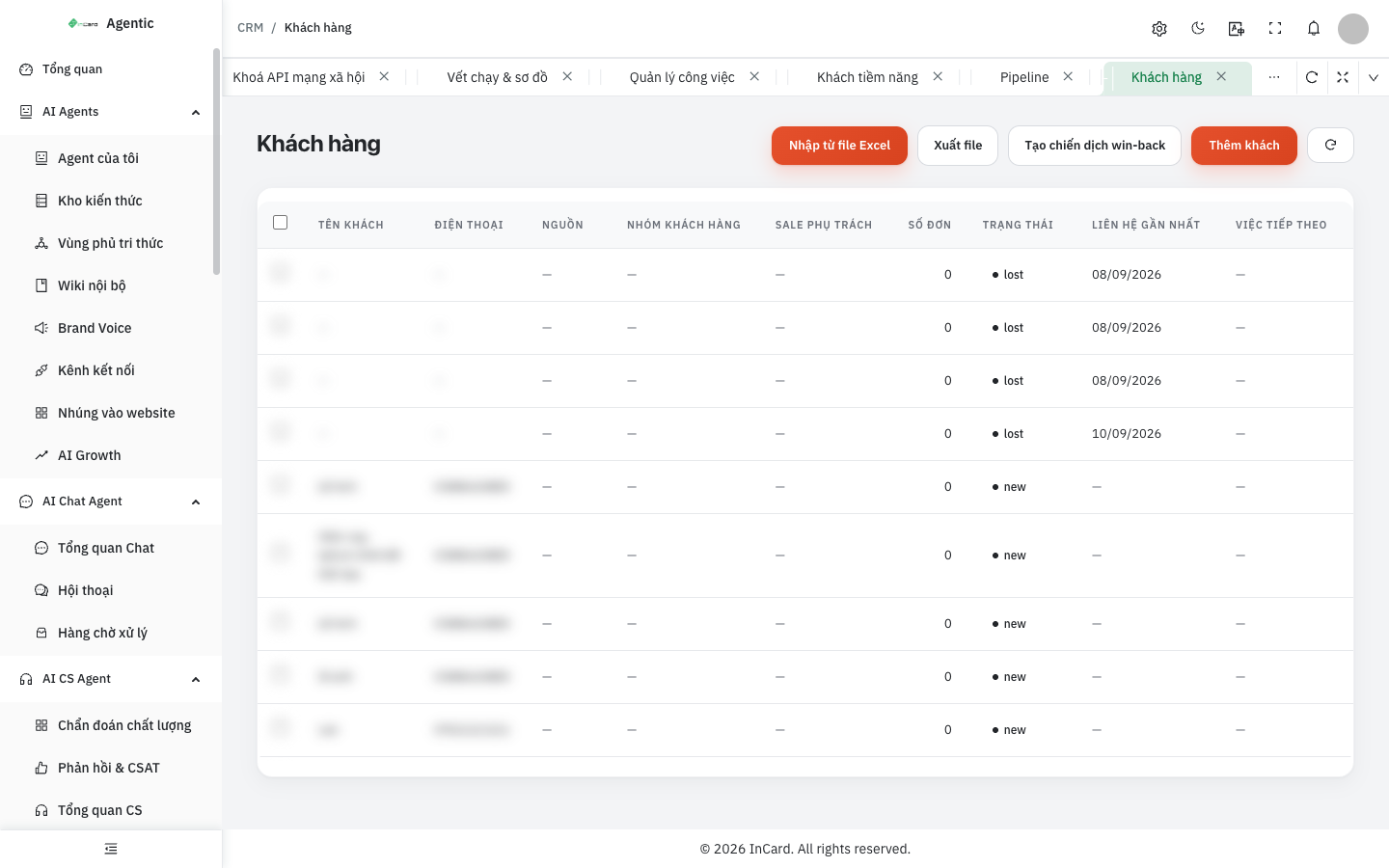
The Customers screen lets you import a list from Excel, export files for reporting and create a win-back campaign for customers who have not returned in a while. Customers are grouped so each segment can be nurtured separately.
Track visitors on your project websites
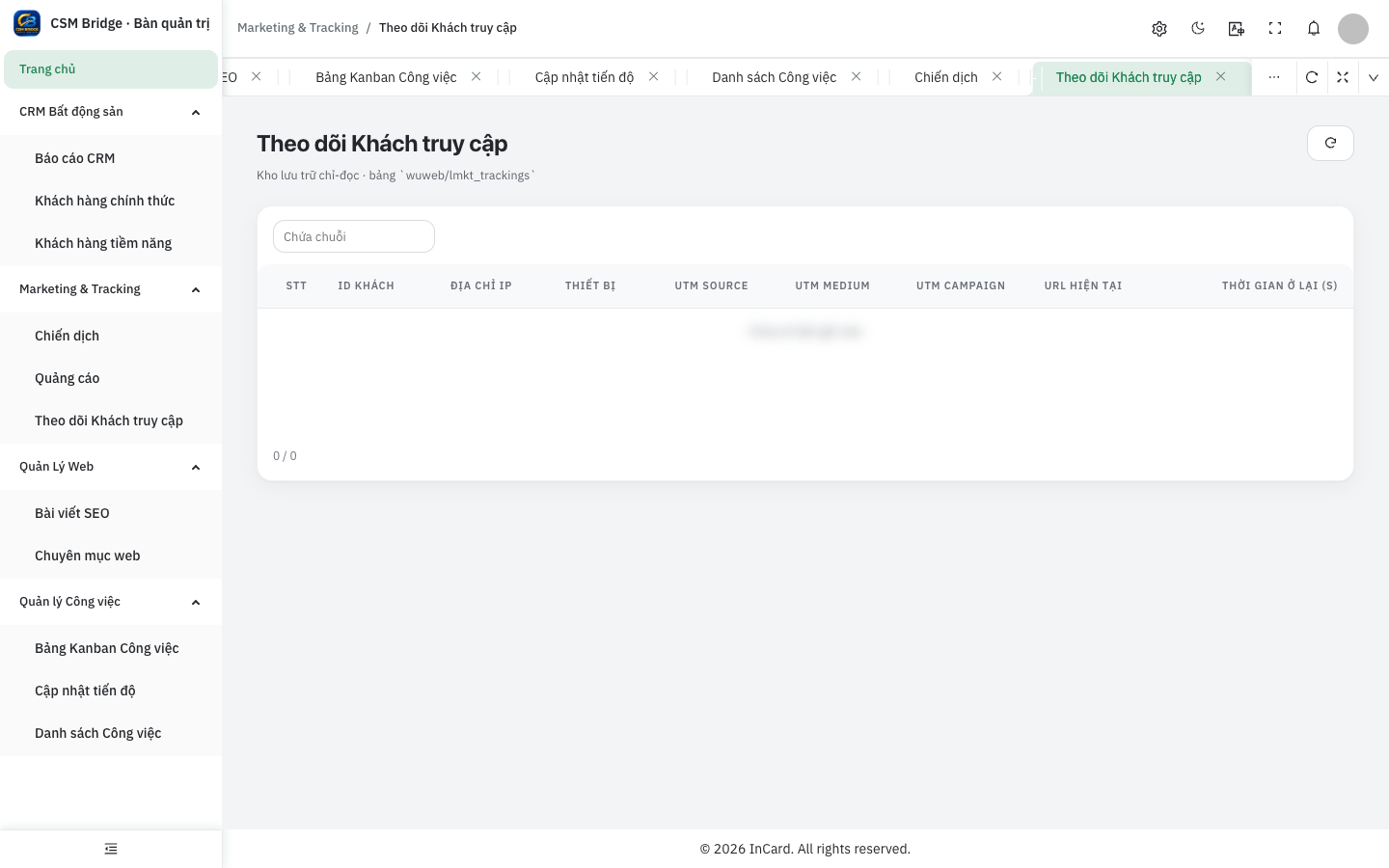
The Visitor Tracking screen records each visitor's journey: visitor ID, device, current page, time on page and UTM source, medium and campaign. You learn which ad brought a buyer and which project pages they viewed before leaving a phone number.
Campaigns with dates and budgets
Each campaign stores its name, start date, end date, budget and status. Placed next to UTM data, it gives the marketing team a basis for comparing ad runs instead of guessing.
A buyer's journey through the real estate CRM
- The buyer views a project page from an ad; the visit is logged with its UTM parameters.
- They leave their details via the website or Messenger and become a lead, with project of interest and budget.
- The assigned agent picks them up, rates how hot they are and sets a next task with a response deadline.
- The buyer moves through the funnel stages: contacted, consulting, quoted.
- On closing, the agent converts them to a customer; every later interaction is added to the history.
Looking back, a manager knows which campaign brought the buyer, who owns the relationship and where it stands.
The real estate CRM works with your AI assistant
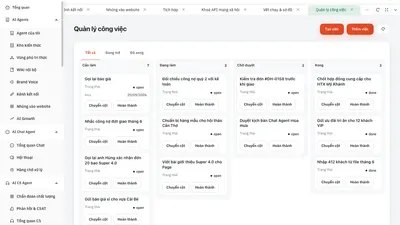
When a project website runs a 24/7 AI chat assistant, visitors who leave their number while asking about price, legal status or progress appear under "hot leads to call" on the overview page. Agents pick up the task and follow it on the Kanban task board.
Best suited to
- Property exchanges and project distribution agencies.
- Developers who need to track buyers project by project.
- Sales teams ready to drop scattered spreadsheets for one shared list.
Talk to us
Want to see it running on your own business data? Get in touch via the Contact page or ask the chat assistant in the corner of the screen. Explore more in the AI Agent Solutions section.